
Introduction
The iPhone call screen can feel like a small magic trick. It tells you who is calling. It shows options quickly. It can show photos, full-screen images, or a tiny banner. This guide walks you through every part of the call screen. I will show simple steps and clear tips. You will learn how to change settings and fix common problems. You will also get ideas to make the screen your own. I use plain words and short sentences. Each idea is easy to follow. I share real examples I have used on my own phone. By the end, the iPhone call screen will be easy and useful for you. Read on and try a tip or two.
How the iPhone Call Screen Works: The Basics
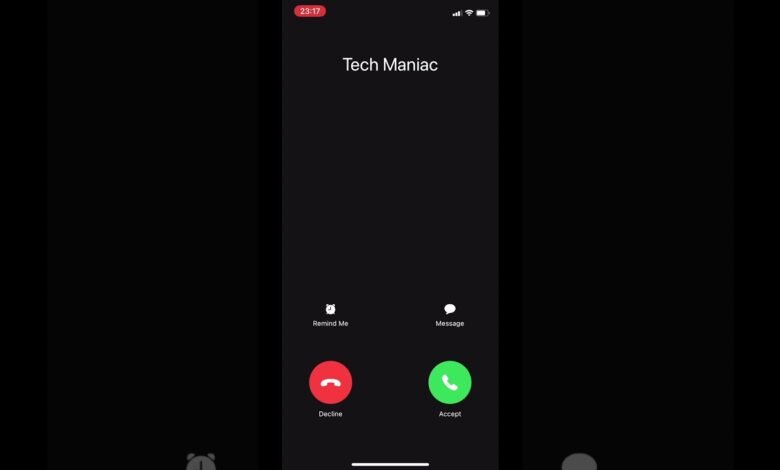
The iPhone call screen appears when someone calls you. It shows a name or number at the top. It also shows buttons to accept or decline the call. If you have a photo for the contact, it can show large. If you are using an iPhone with newer iOS, calls may show as a banner. Banners sit at the top of the screen. Full-screen mode covers the whole display. You can swap between modes in settings. The iPhone call screen also shows options like Remind Me, Message, and Silence Unknown Callers. These tools help you handle calls fast. A simple tap can save time. I often use the banner so I can keep working. The banner keeps my focus and still shows the caller.
Full Screen vs Banner Calls: Pick What Fits You
When a call arrives, you can see two styles: full screen or banner. Full screen covers your entire display. It shows caller contact photos large. Banner appears at the top of the screen. Banner is small and less disruptive. To change this, go to Settings, then Phone, then Incoming Calls. Choose Banner or Full Screen. I use Banner during work hours. It lets me keep typing and checks calls fast. Friends who like a bold look pick Full Screen. Both styles show the same buttons. The choice is about how much you want interruptions. Try both for a day. See which one fits your routine better.
Customizing Caller ID on the iPhone Call Screen
You can change how contacts look on the iPhone call screen. Add photos to contacts for a nice touch. Use square or circle images for style. Open Contacts, tap a name, and Edit the photo. Pick a photo from your library. You can also set a custom ringtone for each contact. A unique sound helps you know who calls without looking. Custom contact photos show on the iPhone call screen and lock screen. If a contact lacks a photo, the screen shows initials. For favorites, use bright images. For work contacts, use simple headshots. This little change brings personality to the call view. I set a distinct tone for my family. It saves time and reduces surprises.
Call Screen Settings: Where to Find Them
Open Settings to change call screen behavior. Tap Phone to start. You will see Incoming Calls, Silence Unknown Callers, and Call Blocking. Incoming Calls lets you set Banner or Full Screen. Silence Unknown Callers sends calls from unknown numbers to voicemail. Call Blocking helps stop spam and repeated callers. You can also tap Face ID & Passcode to change how calls show while locked. For FaceTime calls, go to FaceTime settings. These settings control how the iPhone call screen behaves. I check them when I feel distracted by calls. Adjustments often take seconds. A quick look here can make calls less disruptive during focused work.
Silence Unknown Callers and Spam on the iPhone Call Screen
Spam calls are annoying. The Silence Unknown Callers feature helps with that. When on, it sends calls not in your contacts straight to voicemail. Your iPhone call screen will not show them. You still see a missed call. But you avoid interruptions. To enable this, open Settings, tap Phone, then Silence Unknown Callers. Use this when you get many spam calls. If you expect a call from a new number, turn it off first. Some delivery or service calls use numbers not in your contacts. I turned this on during a busy project. It gave me quiet focus and fewer interruptions.
Using Call Audio and Video Options from the iPhone Call Screen
When a call arrives, you may see audio and video options. FaceTime calls show a video preview. Regular calls show audio only. On the iPhone call screen you can choose to accept on speaker. You can switch to FaceTime if the caller supports it. Tap the small icons to change audio sources. Use AirPods or a speaker with one tap when available. If you are on the move, switching audio helps a lot. I find this handy when I step into a noisy place. The call screen makes switching simple and fast. These options keep calls flexible and let you stay in control.
Accessibility Features That Help on the iPhone Call Screen
The iPhone offers accessibility settings to make the call screen clearer. VoiceOver can read the caller name aloud. You can enable larger text to see names better. Under Settings, tap Accessibility to explore these features. AssistiveTouch helps if pressing buttons is hard. You can set audio balance for left or right ear. Switch Control can manage calls without touch. These tools change how the iPhone call screen behaves. I helped a family member set larger text and a bold photo. Calls became easier to manage. Accessibility settings are small changes that bring big relief.
Managing Multiple Calls and Call Waiting on the iPhone Call Screen
The iPhone call screen shows you when another call comes in. Call Waiting alerts you with a banner. You can put the first call on hold and answer the second. Use the Merge Calls button to start a conference. The call screen shows names and numbers in the call list. If you reject a second call, the first stays connected. Managing calls is simple with clear buttons. I use Merge Calls with a quick tap during group calls. If you get many calls, learn the hold and swap buttons. These moves make your call flow calm and clear. Practice once and it feels natural.
How to Block and Report on the iPhone Call Screen
Blocking unwanted callers removes them from calling you. On the iPhone call screen, tap the info icon after a call. Scroll to Block this Caller and tap it. You can also report spam in some regions. The Phone app shows a Report Junk link after certain calls. Blocked numbers cannot call you or FaceTime you. They do not show up on your iPhone call screen. I block repeated spam and rude callers. This keeps my call log clean. If a blocked number needs to reach you later, you can unblock it easily in Settings. Blocking is a clear way to protect your time and peace.
Personalizing Call Banners and Wallpapers for the iPhone Call Screen
You can add personality to the iPhone call screen using wallpapers and photos. For full-screen calls, the contact photo fills the display. Use bright backgrounds so names stand out. You can edit contact photos to add text and filters. Widgets do not show on the iPhone call screen, but your wallpaper still does. For lock screen calls, your wallpaper frames the call view. I use a neutral wallpaper for clarity. For special contacts, I pick cheerful photos. The design matters for readability. Make sure text is not lost over busy images. Simpler is often clearer for quick decision making.
Troubleshooting: When the iPhone Call Screen Acts Odd
Sometimes the iPhone call screen may not appear correctly. If calls only show as banners, check Settings > Phone > Incoming Calls. If contact photos don’t show, open the Contacts app and reassign the photo. If Silence Unknown Callers hides expected calls, turn it off for a moment. Restarting your iPhone often fixes display glitches. Update iOS if problems persist. For FaceTime calls that lack video, check camera permissions. If audio is missing, test with headphones. I once lost contact photos after an update. Re-syncing from iCloud fixed it. Keep a simple checklist for issues: settings, restart, update, test. This usually solves the most common problems.
Tips to Make the iPhone Call Screen Work Smarter for You
Small habits improve call handling. Label contacts clearly with first and last names. Use unique ringtones for family and VIPs. Turn on Do Not Disturb during focus times. Use the banner for less interruption. Put important numbers in Favorites for quick access. Add contact photos for fast recognition on the iPhone call screen. If you drive, set calls to auto-reply or use CarPlay. For business, use separate tones for clients and colleagues. I set work ringtones for three key people. This helps when I cannot check my phone. These tips help you handle calls with less stress and more control.
Future Call Screen Features to Watch in iOS Updates
Apple often changes how the iPhone call screen looks. Recent updates added richer contact photos and smarter spam detection. Future updates may bring AI tools for call summaries. They might add more custom ring options or smarter banners. Keep your iPhone updated to try new features. Follow Apple’s update notes to learn what changed. If you like testing new features, join the beta program. I test beta updates on a secondary device. It helps me see new call screen features early. But keep your main device stable. Watching updates gives you a head start on helpful call tools.
Frequently Asked Questions (FAQs)
1. How do I change the incoming call style on my iPhone call screen?
Open Settings, tap Phone, then Incoming Calls. Choose Banner or Full Screen. Banner shows a small notice at the top. Full Screen fills the whole display with the caller image. Pick the one you prefer. This change affects how the iPhone call screen looks for every call. I switch styles based on how busy my day is.
2. Why does my iPhone call screen show a number instead of a name?
If the call shows a number, the caller is not in your Contacts. Add the number to Contacts to fix this. If the number is saved but not showing, check for duplicates. Ensure the contact is linked to the right account like iCloud. After fixing, the iPhone call screen will display the name. I sort my contacts monthly to avoid this issue.
3. Can I stop spam from showing on the iPhone call screen?
Yes. Go to Settings > Phone and enable Silence Unknown Callers. You can also use carrier spam filters and third-party apps. Blocking numbers helps too. Report spam when possible. If a known service number is blocked, disable Silence Unknown Callers temporarily. These steps reduce spam on the iPhone call screen and keep it tidy.
4. How do I set a custom photo that appears on the iPhone call screen?
Open Contacts, find the person, and tap Edit. Tap Add Photo or Edit Photo, then choose a picture. Adjust the crop and save. The image will show on the iPhone call screen during full-screen calls. Use clear headshots for best results. I crop photos tightly so the face is visible on the call view.
5. Why did my calls switch to banner mode on the iPhone call screen?
iOS may default to banner mode to be less disruptive. A recent update can change this. Check Settings > Phone > Incoming Calls to switch back. Banner mode is useful when you work on your device and do not want full-screen interruptions. I prefer banner mode while writing to keep my flow.
6. How can I answer calls hands-free from the iPhone call screen?
Use AirPods, a headset, or the speaker option on the call screen. Tap the audio icon during a call to switch. Set Auto-Answer Calls in Accessibility if you need fully hands-free behavior. For driving, use CarPlay which shows calls on the car screen. These methods offer safe, hands-free ways to handle the iPhone call screen. I keep a small Bluetooth headset for walking calls.
Conclusion — Make Your iPhone Call Screen Work for You
The iPhone call screen is simple yet powerful. Small tweaks change how calls arrive and how you respond. Add photos, use banner mode, and block spam for a calmer experience. Try one setting today, then another tomorrow. Personal touches like ringtones and wallpapers make calls faster to recognize. Use accessibility tools if you need them. Keep your phone updated to get new features. If you find a setup that fits, stick with it. Share your favorite tip in the comments or with a friend. I hope these ideas help you master the iPhone call screen. Give one tip a try and enjoy clearer, calmer calls.